Sunday, December 27, 2015

Get logged in user info using SharePoint REST call


Get Current user info from SharePoint Userprofile using Ajax REST call

(function ($) {
    $(document).ready(function () {
        // Ensure that the SP.js file is loaded before the custom code runs.
        SP.SOD.executeOrDelayUntilScriptLoaded(loadUserData, 'SP.js');
    });

    function loadUserData() {    

        jQuery.ajax({
            url: _spPageContextInfo.webAbsoluteUrl + "/_api/SP.UserProfiles.PeopleManager/GetMyProperties",
            type: "GET",
            headers: { Accept: "application/json;odata=verbose" },
            success: function (data) {
                if (data.d.DisplayName != null)
                    var curDisplayName = data.d.DisplayName;
                var curEmail = data.d.Email;
                empEmail = curEmail;
                if (data.d.UserProfileProperties != null) {
                    $.each(data.d.UserProfileProperties.results, function (index, value) {
                        if (value.Key == "Office") {
                            empLocation = data.d.UserProfileProperties.results[index].Value;                          
                        }
                    });
                }              

            },
            error: function (jqxr, errorCode, errorThrown) {
                alert("Error: " + args.get_message());
            }
        });
    }


})(jQuery);

Count number of weekends between two dates using JavaScript

Simple function to calculate number of weekends in-between from and to dates

/********************************************************************************
   * Function : getWeekend                                                                                                                     *
   * Descritption :This function is used to return the number of weekends in-between form and to Dates*   ********************************************************************************/
function getWeekend(dString1, dString2) {
    var aDay = 24 * 60 * 60 * 1000;
    var d1 = new Date(Date.parse(dString1)); //"MM/DD/YYYY"
    var d2 = new Date(Date.parse(dString2));
    var weekend = {
        Sat: 0,
        Sun: 0
    }
    for (var d, i = d1.getTime(), n = d2.getTime() ; i <= n; i += aDay) {
        d = new Date(i).getDay();
        if (d === 6) weekend.Sat++;
        if (d === 0) weekend.Sun++;
    }
    return weekend.Sat + weekend.Sun;
}

Wednesday, December 16, 2015

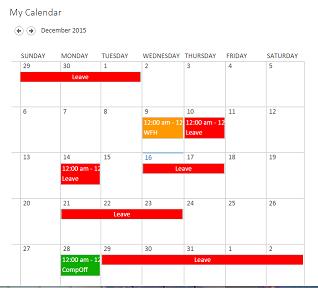
SharePoint Calendar color coding based on categories using Javascript

In the calendar view we have different kind of categories so based on selected category we have applied different color coding in calendar view using JavaScript.

Add this below script into the page using Content Editor Webpart

$(window).bind("load", function() {
   // code here
    ColorCalendar();
//This will help to previous or next month calendar
    $('a[title="Previous Month"]').bind('click', function (event) {
        setTimeout(function () {
            //do what you need here          
            ColorCalendar();
        }, 1000);
     
    });
    $('a[title="Next Month"]').bind('click', function (event) {
        setTimeout(function () {
            //do what you need here          
            ColorCalendar();
        }, 1000);

    });
});

function ColorCalendar() {

var arrayofDivItems = $('div[class="ms-acal-item"] a');
$('div[class="ms-acal-item"] a').each(function(i) {

var colour = GetColourCodeFromCategory(this.text);
if(this.parentNode.parentNode.parentNode.className == 'ms-acal-item')
{
this.parentNode.parentNode.parentNode.style.backgroundColor = colour;
}
else if(this.parentNode.parentNode.className == 'ms-acal-item')
{
this.parentNode.parentNode.style.backgroundColor = colour;
}
else if(this.parentNode.className == 'ms-acal-item')
{
this.parentNode.style.backgroundColor = colour;
}

});
}

function GetColourCodeFromCategory(category) {
var colour = null;
switch (category.trim().toLowerCase()) {
case 'leave':
//green
colour = '#FF0000';
break;
case 'wfh':
//yellow
colour = '#FF9900';
break;
case 'compoff':
//blue
colour = '#0FAD00';
break;
case 'paternity leave':
//blue
colour = '#0010A5';
break;
case 'meternity leave':
//blue
colour = '#0010A5';
break;

}
return colour;
}


Wednesday, December 2, 2015

Send an email to distribution group using SPD Workflow

Has anyone sent a mail to a group (Distribution group in network terminology) from outlook? Most of you guys have done. But this is not something which is feasible using SharePoint designer workflow.
Background
This blog will give you an insight of sending an email to distribution group using alias email in organization.
What is distribution group?
We can create a distribution groups in Active Directory for organization using this group we will have collection of two or more people in members section that appears in your organization’s address book.  Distribution groups are not security-enabled and this group will not be resolved in SharePoint address book, which means that they cannot be listed in discretionary access control lists (DACLs). When we want send an email to group of people then we will use distribution group, it goes to all members of the group.
Why Security Group?
Security groups are used to control access to resources. Using security groups, you can assign permissions to security groups in AD or on resources. Meanwhile, security groups can be mail enabled and security group will be resolved in SharePoint address book. 
When we create a SharePoint Designer workflow with an action of sending a mail to alias email we had an issue while adding into the email section using address book
Steps to follow to avoid this issue
1.     Create the Security Group through the Microsoft Online Services Portal (MOS Portal)

2.     Add the Distribution list as member of Security group
3.     Change the settings in Delivery management section as below

4.     Then setup the email action use the address book to locate the security group
5.     We can add this security group under the SharePoint Group as a use

Hope this helps.

Monday, November 9, 2015

Date validation From and To using JavaScript


varFrom - ID of Form date control
varTo - ID of To date control


function isValidDate(varFrom, varTo)
 {
    var fromdate, todate, dt1, dt2, mon1, mon2, yr1, yr2, date1, date2;
    var chkFrom = document.getElementById(varFrom);
    var chkTo = document.getElementById(varTo);
    if (varFrom != null && varTo != null) {
      if (checkdate(chkFrom) != true) {
        chkFrom.value = '';
        chkFrom.focus();
        return false;
      }
      else if (checkdate(chkTo) != true) {
        chkTo.value = '';
        chkTo.focus();
        return false;
      }
      else {
        fromdate = chkFrom.value;
        todate = chkTo.value;
        date1 = new Date(fromdate);
        date2 = new Date(todate);

        if (date2 <= date1) {
          alert("To date Should be greater than From date");
          chkFrom.value = '';
          chkFrom.focus();
          return false;
        }
      }
    }
    return true;
  }

function checkdate(input)
 {
    var validformat = /^\d{1,2}(\-|\/|\.)\d{1,2}\1\d{4}$/ //Basic check for format validity
    var returnval = true;
    if (input.value == '' || !validformat.test(input.value))
    {
      alert("Invalid Date Format. Please correct and submit again.")
      var returnval = false;
    }
    return returnval
  } 

Get the user information from people picker column using REST call

If you want to get the user information from the people picker column using REST call follow this one

Note: Here we have  used the expand keyword  in REST call for two people picker columns in sharepoint list

var listName = "Leave-WFH Request";
var restQuery = "LeaveCategory eq 'Holiday' and  From gt '11/03/2015' and To lt '21/03/2015'";  
 
        jQuery.ajax({
            url: _spPageContextInfo.webAbsoluteUrl + "/_api/web/lists/getbytitle('" + listName + "')/Items?$select=Title,From,To,EmployeePhone,LeaveCategory,EmployeeLocation,EmployeeName/Title,Manager/Title&$expand=EmployeeName,Manager&$filter="+ restQuery,
            type: "GET",
            headers: { Accept: "application/json;odata=verbose" },
            success: function (data) {
}
error: function (jqXHR, textStatus, errorThrown) {
                Console.log("UpcomingEventsHomePage.js:loadEventsData:: " + textStatus);
            }
        });

If we have single column the query will be

    url: _spPageContextInfo.webAbsoluteUrl + "/_api/web/lists/getbytitle('" + listName + "')/Items?$select=Title,From,To,EmployeePhone,LeaveCategory,EmployeeLocation,EmployeeName/Title&$expand=EmployeeName&$filter="+ restQuery,

Thursday, October 29, 2015

Monthly View Webpart with recurring events in SharePoint Calendar List

Development Steps 

Required JS
<!-- Reference jQuery on the Google CDN -->
<script type="text/javascript" src="//code.jquery.com/jquery-2.1.4.min.js"></script>
<!-- Reference SPServices on cdnjs (Cloudflare) -->
<script type="text/javascript" src="//cdnjs.cloudflare.com/ajax/libs/jquery.SPServices/0.7.1a/jquery.SPServices-0.7.1a.min.js"></script>
<script type="text/javascript">
CAML Query
CAML query for Get current month events from Calendar List
CAMLQuery: "<Query>" +
            "<Where>" +
                "<DateRangesOverlap>" +
                    "<FieldRef Name='EventDate' />" +
                    "<FieldRef Name='EndDate' />" +
                    "<FieldRef Name='RecurrenceID' />" +
                    "<Value Type='DateTime'>" +
                        "<Month />" +
                    "</Value>" +
                "</DateRangesOverlap>" +
            "</Where>" +
            "<OrderBy>" +
                "<FieldRef Name='EventDate' />" +
            "</OrderBy>" +
        "</Query>",
    CAMLQueryOptions: "<QueryOptions>" +
            "<CalendarDate>" + startDate + "</CalendarDate>" +
            "<RecurrencePatternXMLVersion>v3</RecurrencePatternXMLVersion>" +
            "<ExpandRecurrence>TRUE</ExpandRecurrence>" +
        "</QueryOptions>",

Call SPServices
·         Using SPServices we can get items form Calendar list
·         We have to apply the above CAML query while get items from list
·         Based on list we will generate the table which has event info
·         Add the hyperlink for view full calendar view
<a
href="JavaScript:var options=SP.UI.$create_DialogOptions();
options.url='https://collaboration/sites/ENF/MicroCap/Lists/Calendar/calendar.aspx';
options.title = 'Monthly Calendar';
options.height = 500;
void(SP.UI.ModalDialog.showModalDialog(options))">Monthly View</a>

Implementation
Create CurrentMonthlyView.html which has the above info SPSevices call and place this into style libray
Create content editor webpart into home page and add the reference of CurrentMonthlyView.html file into it.

Verification Steps


·         Check display meeting events are associated to current month or not